

Documentation
Learn how to configure capture schedules, timezones, trigger windows, and cloud storage — from first setup to production workflows.
Browse sections
Need help?
Contact SupportCloud Storages
Connect your own Google Drive, Dropbox, or S3-compatible storage using Cloud Storage Profiles. Captures are delivered to your destination so your team owns the archive and can audit it anytime.
Cloud Storage Profiles act like “delivery connections”. You create one profile per destination (folder/bucket), then reuse it across Web Profiles and schedules.
Note: Some storage options may vary by plan and rollout. If you don’t see a provider in your dashboard, contact support.
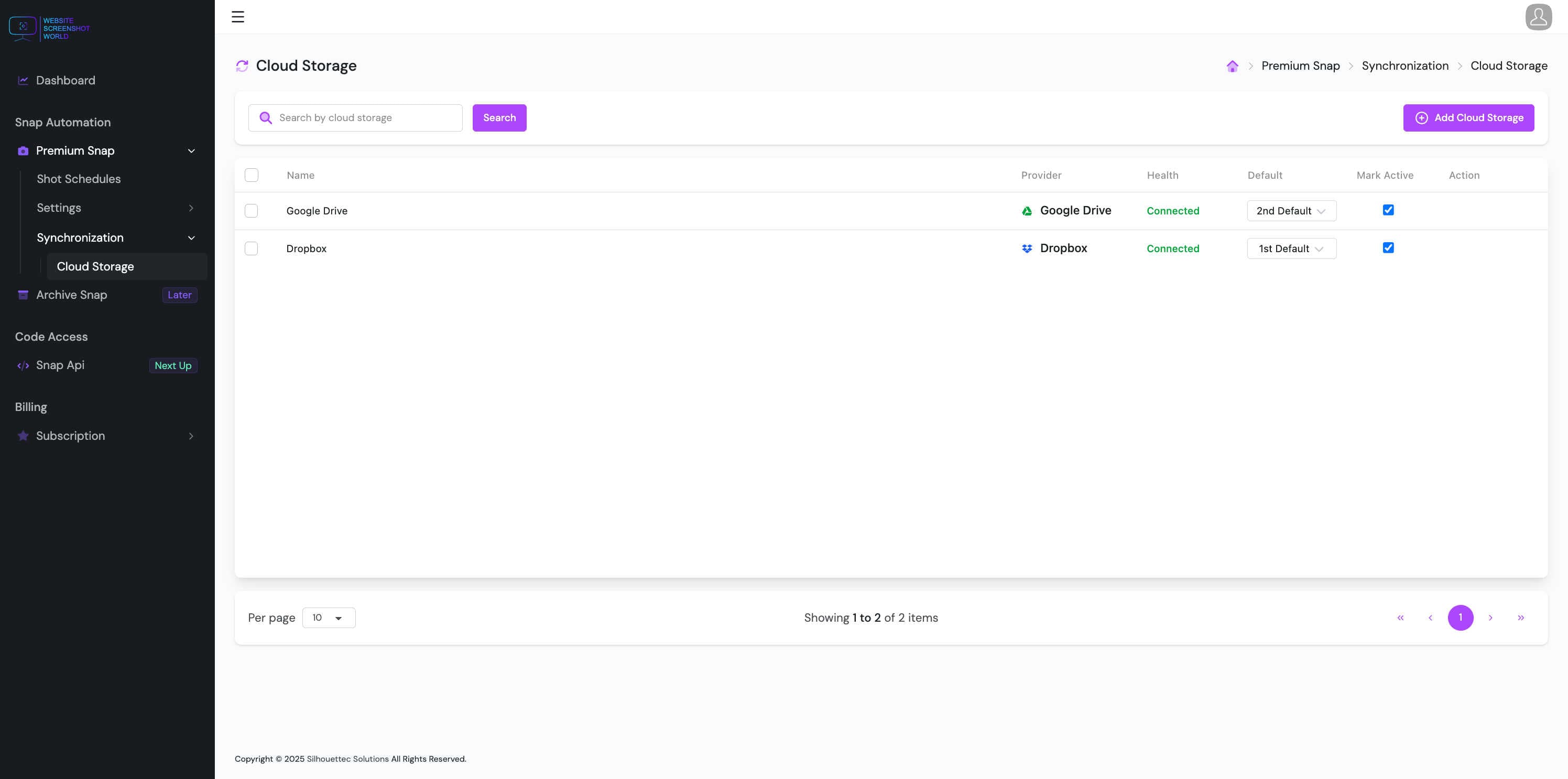
What is a Cloud Storage Profile?
A Cloud Storage Profile stores the configuration needed to upload captures to a specific destination.
- Profile Name — human-friendly label (e.g., “Legal Drive Folder”, “Marketing S3 Bucket”).
- Provider — Google Drive, Dropbox, or S3-compatible.
- IsActive — whether the profile can be used by schedules.
- Destination details — folder ID/path, bucket name, region, etc. (provider-specific).
- Credentials / tokens — used only for uploads to your chosen destination.
Supported providers
Depending on your plan and configuration, you can connect:
Google Drive
Great for teams and client-facing deliverables. Easy sharing and folder organization.
Dropbox
Simple folder-based archives with strong sync workflows.
S3-compatible storage
Best for large volumes and pipelines. Works with AWS S3 and compatible providers.
Multiple destinations
Use multiple profiles to route different schedules to different locations.
Security & permissions
When you connect a storage provider, we use the credential/token you provide only to upload captures to the destination you selected.
- Use least-privilege permissions where possible (upload/write to the target folder/bucket).
- Rotate keys/tokens periodically (especially for S3 credentials).
- If you revoke access, uploads will fail until you reconnect or switch profiles.
Health & status
Each Cloud Storage Profile may show a health indicator so you can spot problems early.
| Status | Meaning | What to do |
|---|---|---|
| Healthy | Uploads should succeed. | No action needed. |
| Unhealthy | Token expired, permissions changed, or destination unreachable. | Reconnect / fix permissions / verify bucket or folder. |
| Inactive | Profile is disabled and won’t be used. | Enable it or switch schedules to another profile. |
Linking to Web Profiles & schedules
Most teams set delivery at the Web Profile level, then every schedule using that profile automatically delivers to the right place.
Recommended
Attach storage profiles to Web Profiles (e.g., “Legal Desktop”, “Marketing Mobile”).
Special cases
Override delivery on a specific schedule if it needs a unique destination.
Best practices
- Name profiles by purpose + destination (e.g., “Compliance • S3 • eu-west-1”).
- Keep one profile per bucket/folder for clear ownership and access control.
- Review health flags after credential rotation or permission changes.
- Use separate destinations for Legal/Compliance vs Marketing/Research to simplify audits.
Continue
Next, create a Shot Schedule to automate captures with your chosen Web Profile and storage.