

Documentation
Learn how to configure capture schedules, timezones, trigger windows, and cloud storage — from first setup to production workflows.
Browse sections
Need help?
Contact SupportShot Schedules
A Shot Schedule is the “job definition” for one URL. It defines what to capture, when to capture it, and how the capture behaves (via a Web Profile) — including delivery to your connected storage.
Think of schedules like “monitoring rules”. If you need to capture 10 pages, create 10 schedules (one per URL). This keeps history clean and makes audits and troubleshooting straightforward.
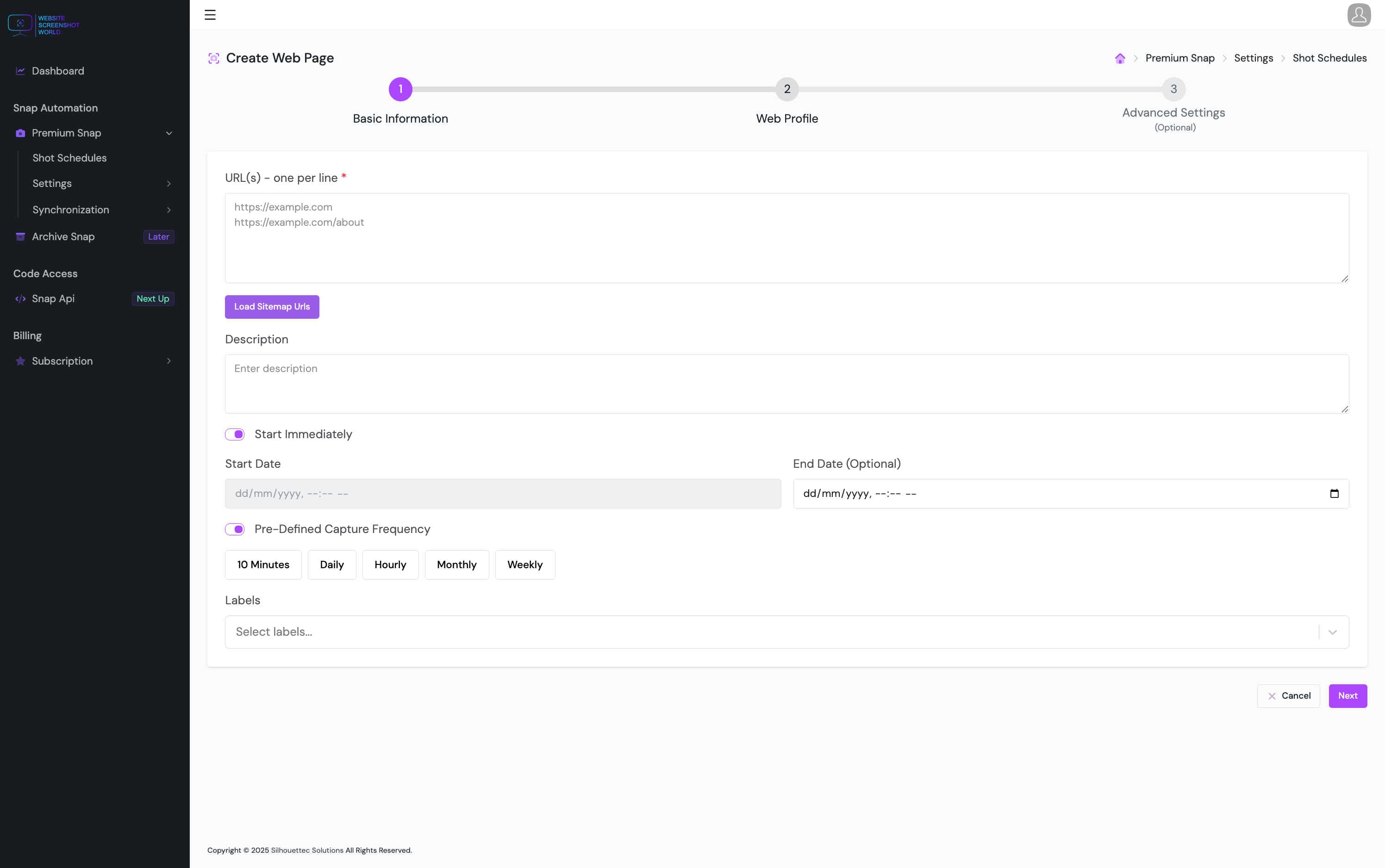
Core fields
At a minimum, every schedule needs a URL and a Web Profile. Everything else refines behavior and organization.
- URL — the page to capture (one schedule per URL).
- DomainName — auto-populated for quick identification (editable if needed).
- Description — optional, helps humans understand the purpose of the schedule.
- Web Profile — determines device, resolution, blocking rules, storage, and more.
- Labels — optional tags for filtering and reporting.
- Trigger Window — optional “allowed time” rule (business hours, campaign window, etc.).
Start & stop behavior
Start/stop settings control when the schedule becomes eligible to run.
Start immediately
Begin running as soon as the schedule is saved and enabled.
Start date/time
Delay execution until a specific date and time (useful for campaigns).
End date/time (optional)
Automatically stop after a date (end-of-campaign or temporary monitoring).
Disable anytime
Turn off a schedule without deleting it (keeps history intact).
Frequency & capture time
Schedules can use built-in frequencies or custom calendar rules. Choose the simplest option that matches your use case.
Pre-defined frequency
Hourly, daily, weekly, monthly (and other presets) — quickest to set up and easiest to maintain.
Custom calendar fields
Use Month / Day / Time for strict patterns
Selectors & interactions
Some pages need small interactions before the screenshot is useful (closing cookie banners, switching tabs, expanding details). Use selectors to automate those steps.
- SelectorXPath — Target a specific element (focus/capture context).
- SelectorClick — Click an element (e.g., open a tab, dismiss a modal).
- SelectorHide — Hide distracting elements (e.g., chat widgets, sticky banners).
- SelectorHover — Hover to reveal menus/tooltips before capture.
Continue
Next, learn about where captures run globally and how location affects rendering.